
XAMPP’s default web root directory is htdocs (C:\xampp\htdocs). When you start XAMPP’s Apache Server, the domain http://localhost/ automatically points to this folder. Any files or projects placed inside htdocs will be served when you access https://localhost/ in your browser.
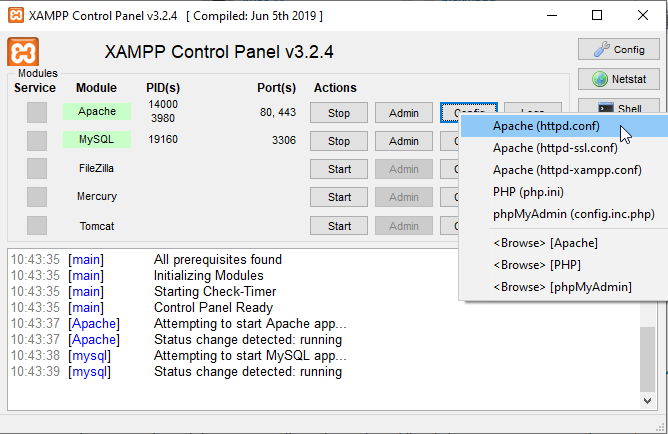
You can change the root directory to a custom folder by modifying Apache’s httpd.conf file. Default location: C:\xampp\apache\conf\httpd.conf. You can also directly access this file from XAMPP’s Control Panel Apache/Config/Apache (httpd.conf).
Inside httpd.conf, look for the line that contains DocumentRoot “C:/xampp/htdocs”. You can also do this by CTRL+F and look for the keyword “htdocs”. Once, you find it, change it into your new path. For example, you want the root directory to be htdocs/public_html instead. Therefore, change:
#
# DocumentRoot: The directory out of which you will serve your
# documents. By default, all requests are taken from this directory, but
# symbolic links and aliases may be used to point to other locations.
#
DocumentRoot "C:/xampp/htdocs"
<Directory "C:/xampp/htdocs">
into:
DocumentRoot “C:/xampp/htdocs/public_html”
<Directory “C:/xampp/htdocs/public_html”>
Then save the httpd.conf file and restart Apache service in XAMPP’s control panel for the changes to take effect.
Once done, open https://localhost in your web browser, and you should now see that it’s serving the contents of htdocs/public_html instead of htdocs.